TEL:+86 132 6656 7067




DAC Cable Interconnect Anomalies are a common and multifaceted issue in data centers, high-performance computing, and network deployments. While DACs are widely used for short-distance, intra-rack connections due to their low cost, low power consumption, and low latency, their anomalies are often strongly related to the physical and link layers.
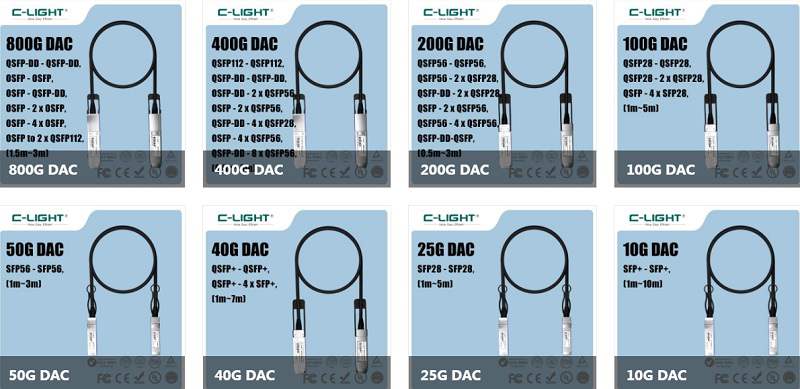
Below are the most common failure points, troubleshooting approaches, and solutions for DAC interconnect anomalies:
Physical Layer & Hardware Issues
1. Cable or Module Fault
Symptoms: No link (physical LED off), high bit error rate, intermittent disconnections.
Causes:
●Cable subjected to external pressure, excessive bending (especially near connectors).
●Dirty, oxidized, or physically damaged connectors.
●Electromagnetic interference (EMI).
●Poor cable quality or exceeding service life.
Troubleshooting:
●Check port status LEDs.
●Test by swapping ports or replacing the DAC cable with a known-good one.
●Check switch/device logs for `CRC` errors or `symbol` error records.
2. Compatibility Issues
Symptoms: Link fails to come UP, speed negotiation failure (e.g., failing to operate at 10G/25G/40G).
Causes:
●Non-standard cables: Use of third-party or "white-label" DACs incompatible with the equipment vendor.
●Encoding mismatch: Older DACs may be incompatible with newer equipment regarding encoding schemes (e.g., 64b/66b vs. 128b/130b).
●Speed negotiation failure: Mismatched supported speed modes between the two connected devices.
Troubleshooting:
●Verify the DAC cable is on the device's official compatibility list.
●Attempt to hard-set port speed and duplex mode (ensuring settings match on both ends).
●Prioritize using OEM or vendor-certified DACs.
3. Port or Device Issues
Symptoms: The same DAC cable behaves differently on different ports or devices.
Causes:
●Physical damage to the device port.
●Device power supply or related chipset failure.
●Poor cooling leading to port instability.
Troubleshooting:
●Test the DAC on another port of the same type on the device.
●Check device temperature, fan status, and system logs.
Configuration & Negotiation Issues
1. Auto-negotiation vs. Speed/Duplex Mismatch
Symptoms: Unstable link state, intermittent connectivity, very poor performance (e.g., high packet loss).
Causes:
●One end hard-set (e.g., 10G Full Duplex) while the other is set to auto-negotiate, causing a duplex mismatch (a classic fault).
●Inconsistent hard-set speed or duplex modes on both ends.
Troubleshooting & Solution:
●For DACs/AOCs (direct-attach cables), it is recommended to set both ends to the same fixed speed and full duplex mode, and disable auto-negotiation.
●Check configuration on both switch/NIC ends: verify speed and duplex status.
2. FEC Setting Mismatch
Symptoms: Link fails to come UP at high speeds.
Causes: High-speed SerDes requires high signal integrity, often needing FEC for stability. The FEC modes on both devices (e.g., Firecode FEC, RS-FEC, Auto) must match.
Troubleshooting: Check and align the FEC configuration on both ends. It is commonly set to `Auto` or according to the device's recommended configuration.
Environmental & Operational Issues
1. Cooling & Temperature
Symptoms: Increased link errors or even interruptions in high-temperature environments.
Causes: DAC cable and switch port chip performance degrades at high temperatures. Cable tangling and bundling can impede airflow.
Troubleshooting: Check data center ambient temperature, ensure clear airflow paths, and avoid cables blocking ventilation.
2. Cable Management
Symptoms: Faults appearing after maintenance or re-cabling.
Causes:
●Improper force during insertion/removal, damaging the interface or cable.
●Mislabeled cables leading to accidental disconnection or incorrect topology connections.
Solution: Implement proper cable management, use color-coded labels, insert/remove cables gently, and ensure an audible "click" confirms secure locking.
Advanced / Specific Scenario Issues
1. Long-Distance or Edge Applications
Cause: DACs have strict maximum length limits (commonly 3m, 5m, 7m). Using cables beyond specification causes signal attenuation and link instability.
Solution: Confirm the actual distance and select an appropriately sized DAC, or switch to Active Optical Cables (AOCs) or optical transceivers with fiber.
2. Considerations for Mixing with Optical Modules
Cause: Some device ports have different power recognition or configuration settings for DACs vs. optical modules. Direct mixing may prevent port startup or cause damage.
Recommendation: Consult the device manual for compatibility notes regarding direct-attach cables and optical modules on the same ports.
Systematic Troubleshooting Steps
When a DAC interconnect anomaly occurs, follow this sequence:
1. Substitution Method: Replace the suspect DAC cable with a confirmed working one. If resolved, the original cable is faulty.
2. Swap Ports:
●Swap the ends of the faulty DAC cable.
●Connect the DAC to another available port of the same type on the device.
●This step isolates whether a specific port or the cable is faulty.
3. Check Configuration:
●Log into both devices and check the configuration of the affected interface.
●Focus on: `Admin Status`, `Operational Status`, `Speed`, `Duplex`, `FEC` mode, `Error counters`.
4. Review Logs: Check device system logs (`show log`) for error messages related to interface `up/down`, `CRC error`, `link-flap`.
5. Inspect Physical Environment: Check for obvious cable bends, pinches, connector cleanliness, and verify normal device temperature and cooling.
6. Update Firmware/Drivers: If the above steps fail, check for known bugs in device firmware or NIC drivers and consider upgrading.
7. RMA/Contact Support: If the issue persists, contact the cable supplier for warranty service or further diagnosis.
In summary, the vast majority of DAC issues are concentrated in "physical hardware" and "link-layer negotiation." Mastering the "Substitution Method" and "Checking Port Status & Error Counters" can resolve over 80% of DAC interconnect anomalies.
 >
>

 >
>
 >
>
 >
>
 >
>
 >
>
 >
>
 >
>